If you search for how to get water out of an iPhone speaker, you will find two kinds of answers: install a Siri Shortcut called “Water Eject”, or open a website that plays a tone. Both work on the same principle. The differences are about convenience, trust and what you have to install.
What is the “Water Eject” shortcut?
Water Eject is a community-made shortcut for Apple’s Shortcuts app. It isn’t made by Apple and it isn’t built into iOS. When you run it, it plays a low-frequency tone through the speaker for several seconds, the same idea as the water ejection on an Apple Watch.
To install it, you have to find a shared link (usually through a shortcut gallery site), open it on your iPhone and add it to the Shortcuts app. After that you can run it from the app, from a home screen icon or by asking Siri.
What is actually built into Apple devices?
- Apple Watch has a built-in Water Lock feature. When you turn it off, the watch plays a series of tones to push water out of its speaker. This is official and supported.
- iPhone has no built-in water eject feature. Apple’s official advice for a wet iPhone is to tap it gently with the Lightning or USB-C port facing down and let it air dry.
So on an iPhone, the shortcut and an online tool are both unofficial helpers. Neither is “the Apple way”. Both simply play a tone.
What is an online speaker cleaner?
A website like Fix My Speaker generates a tone directly in your browser using the Web Audio API, a standard feature of Safari, Chrome and other modern browsers. Nothing is downloaded, no app is installed, and no microphone access is needed. You open the page, tap a button and it plays.
Side by side
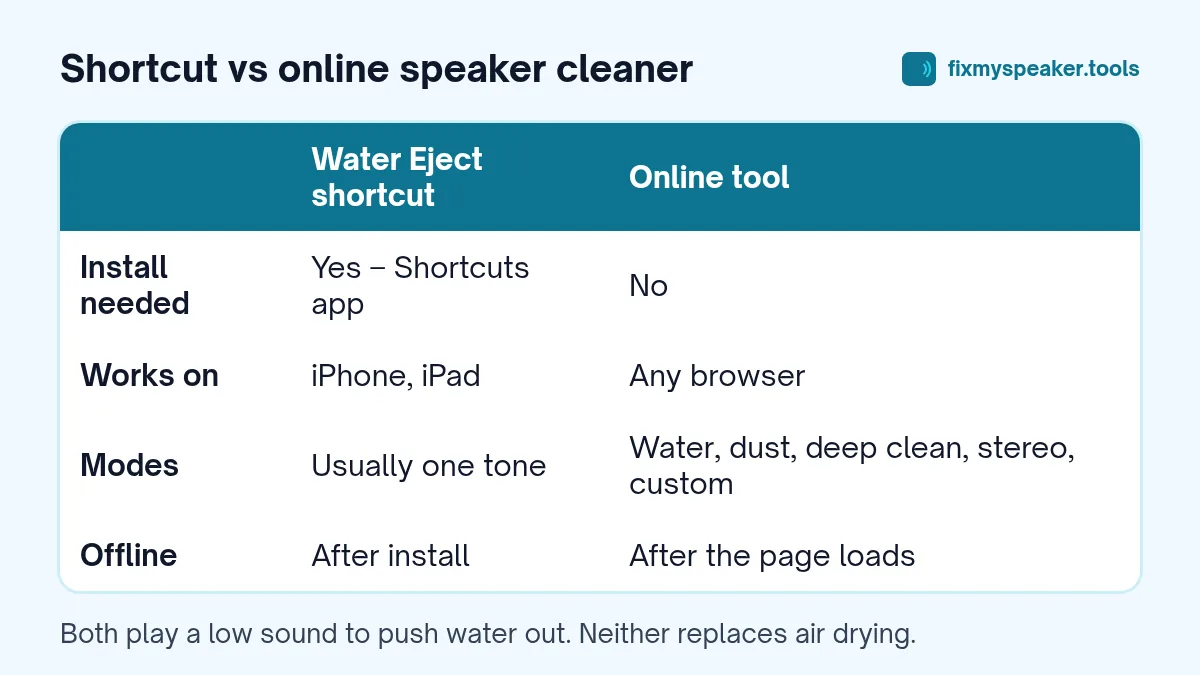
Installation
- Shortcut: You need to find a trustworthy link, add it to the Shortcuts app, and sometimes adjust settings. Shortcuts from unknown sources can technically do other things with permissions you grant, so it is worth checking what the shortcut contains before running it.
- Online tool: Nothing to install. Open the page in Safari and tap the button.
Devices
- Shortcut: iPhone and iPad only.
- Online tool: Any phone, tablet or laptop with a modern browser, including Android, Windows and Mac.
Features
- Shortcut: Usually a single fixed tone, sometimes with a short series of pulses.
- Online tool: Fix My Speaker includes Water Eject (a 15 Hz square-wave buzz with harmonics through 165 Hz), Dust Removal (a 100 to 1000 Hz pulsed sweep), Deep Clean (low pulses), a Stereo Test for each speaker, and a custom frequency slider with a timer.
Offline use
- Shortcut: Once installed, it works offline.
- Online tool: Needs a connection to load the first time. After the page has loaded, the tone is generated on your device, so it keeps working even if you lose signal while it runs. If you expect to need it somewhere without signal, open the page beforehand and keep the tab open.
Speed
Both are fast once set up. The shortcut can be triggered with Siri, which is handy if your hands are wet. The website is quicker the first time, because there is nothing to install.
Does either one work better?
The physics is the same. A low tone makes the speaker diaphragm move with a long stroke, which pushes air and water out of the grill. The exact frequency matters less than people think; anything in the low hundreds of hertz moves the diaphragm a lot. What matters more is:
- Volume. Turn it all the way up.
- Orientation. Point the speaker down so gravity helps.
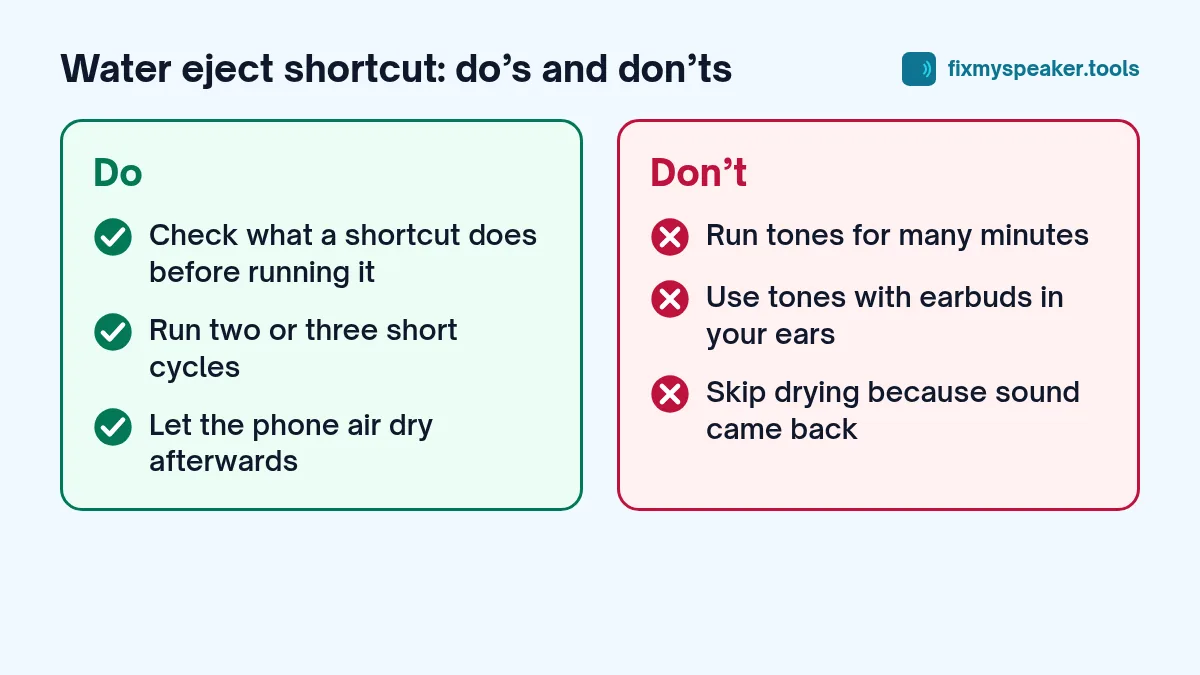
- Repetition. Two or three cycles clear more water than one.
- Time. After the grill is clear, the phone still needs to air dry.
We go deeper into the physics, and the limits, in does 165 Hz really work.
Is it safe for the speaker?
Playing a tone at full volume for a minute or two is within what a phone speaker is designed to handle; it is no different from playing loud bass-heavy music. That said:
- Stop if the sound becomes harsh or rattly, which can mean the speaker is struggling.
- Don’t run tones for long periods back to back. A few cycles is plenty.
- Never use either method with earbuds or headphones in your ears. See what to do if your AirPods or earbuds get wet.
So which should you use?
- Use the online tool if you want something right now, if you’re not on an iPhone, or if you want extra modes like dust removal and the stereo test.
- Use the shortcut if you are on an iPhone, regularly get your phone wet (for example, around a pool) and like triggering things with Siri, and you have found a source you trust.
Many people use both. Whichever you pick, combine it with the basic steps in our iPhone water removal guide: wipe the phone, don’t charge it while wet, skip the rice and give it time to dry.
How to check a shortcut before you run it
If you decide to use a shortcut, take a minute to look inside it before you run it. In the Shortcuts app, tap the three dots on the shortcut’s tile to open it in the editor. A water eject shortcut should contain only a few simple actions: something that sets the volume, something that plays a sound (often a short encoded audio clip), and perhaps a notification.
Be cautious if a shortcut asks for access to your contacts, photos, location or messages. None of those are needed to play a sound. Only add shortcuts from sources you trust, and delete any you no longer use.
Common mistakes with either method
- Leaving the case on. Cases often cover or partly block the speaker opening.
- Volume not at maximum. On iPhone, the volume buttons may control the ringer instead of media if nothing is playing. Start the sound, then press volume up.
- Holding the phone speaker-up. Gravity matters. Point the bottom edge down.
- Stopping after one cycle. Water often clears over two or three cycles.
Frequently asked questions
Does the online tool work in Chrome on iPhone?
Yes. All browsers on iPhone use the same web engine as Safari, so the tool works the same way in Chrome, Firefox or Edge.
Why does the sound stop if I switch apps?
Browsers pause or stop web audio when the page goes into the background. Keep the page on screen until the cycle finishes.
Can I use the tool on an iPad?
Yes. iPads have the same kind of speakers, often on more than one edge. Run the tool with each speaker edge facing down.
A quick way to try it now
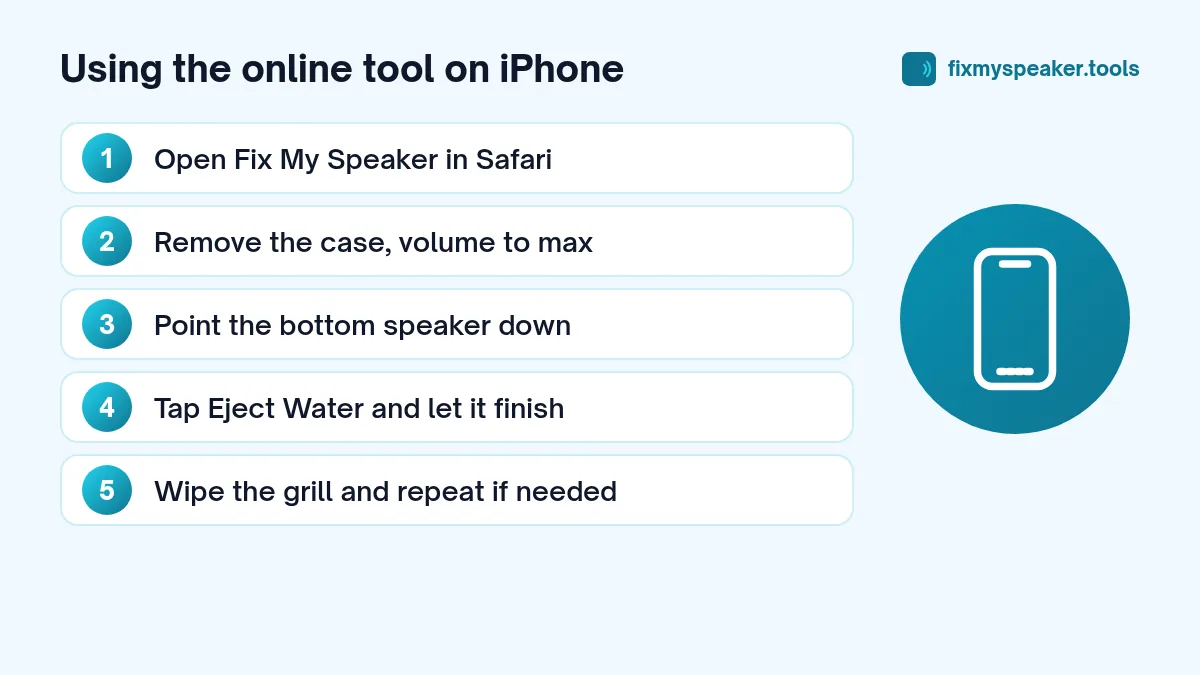
- Open Fix My Speaker in Safari.
- Remove the case, turn the volume up fully.
- Point the bottom speaker down.
- Tap Eject Water and let it run.
If the sound is still muffled after a few cycles and a day of drying, read why your phone speaker sounds muffled for other causes.