When laptop speakers go silent, the cause is usually a setting, not a broken speaker. Windows and macOS both make it easy for sound to end up on the wrong device, especially after you’ve used Bluetooth earbuds, an HDMI monitor or a USB headset. This guide covers the checks in the order most likely to solve the problem.
Quick checks for every laptop
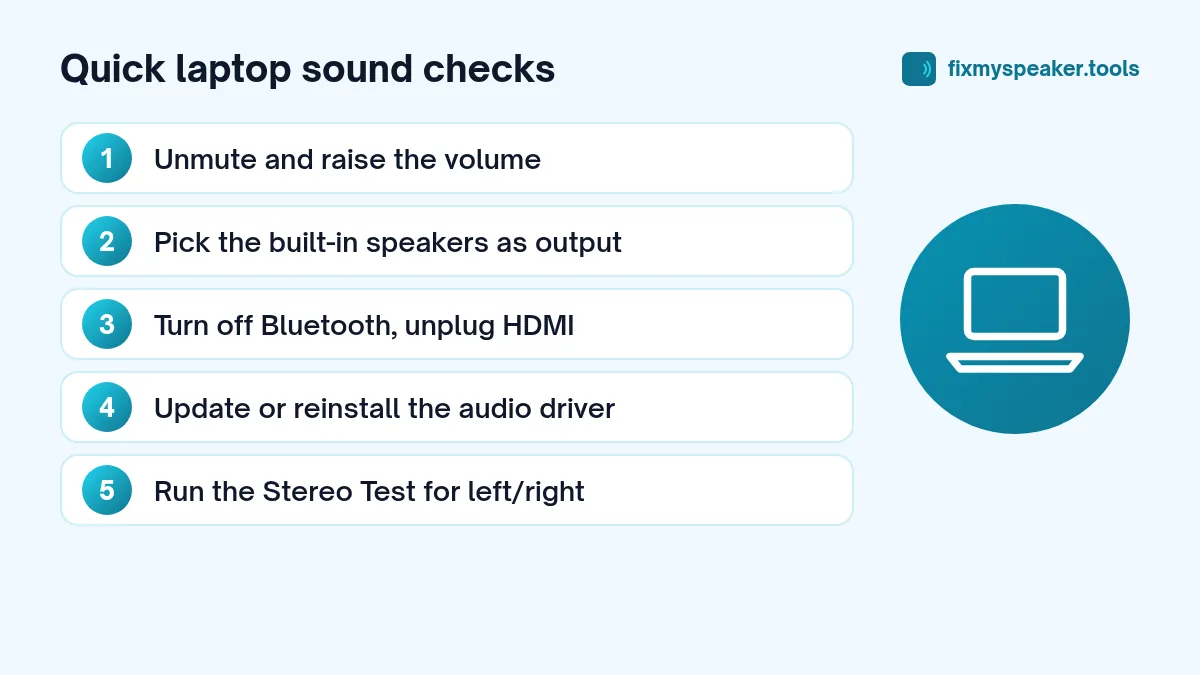
- Unmute and raise the volume with the keyboard keys and in the system volume control.
- Unplug headphones and anything in the headphone jack. A faulty jack can also make the laptop think headphones are still plugged in.
- Turn off Bluetooth briefly to disconnect any earbuds or speakers.
- Unplug HDMI or USB-C displays, which can take over audio output.
- Restart the laptop. It sounds obvious, but it fixes a lot of audio glitches.
- Test with the Fix My Speaker Stereo Test to see whether the left, right or both speakers are affected.
Windows 10 and Windows 11
Check the output device
- Windows 11: Click the speaker icon on the taskbar, then the arrow next to the volume slider, and choose your laptop’s built-in speakers. You can also go to Settings, System, Sound, and pick the speakers under Output.
- Windows 10: Click the speaker icon and use the drop-down above the volume slider, or go to Settings, System, Sound.
The built-in speakers are usually named “Speakers” followed by the audio chip brand, like Realtek or Intel.
Check the volume mixer
Individual apps can be muted. In Windows 11, open Settings, System, Sound, Volume mixer. In Windows 10, right-click the speaker icon and choose Open Volume mixer. Make sure the app you’re using isn’t muted or set very low.
Run the audio troubleshooter
Windows includes an automated audio troubleshooter. In Windows 11 you can search for “audio troubleshooter” or go to Settings, System, Sound and look for the troubleshooting option. In Windows 10, it’s under Settings, Update and Security, Troubleshoot. It checks common problems like disabled devices and stopped services.
Turn off audio enhancements
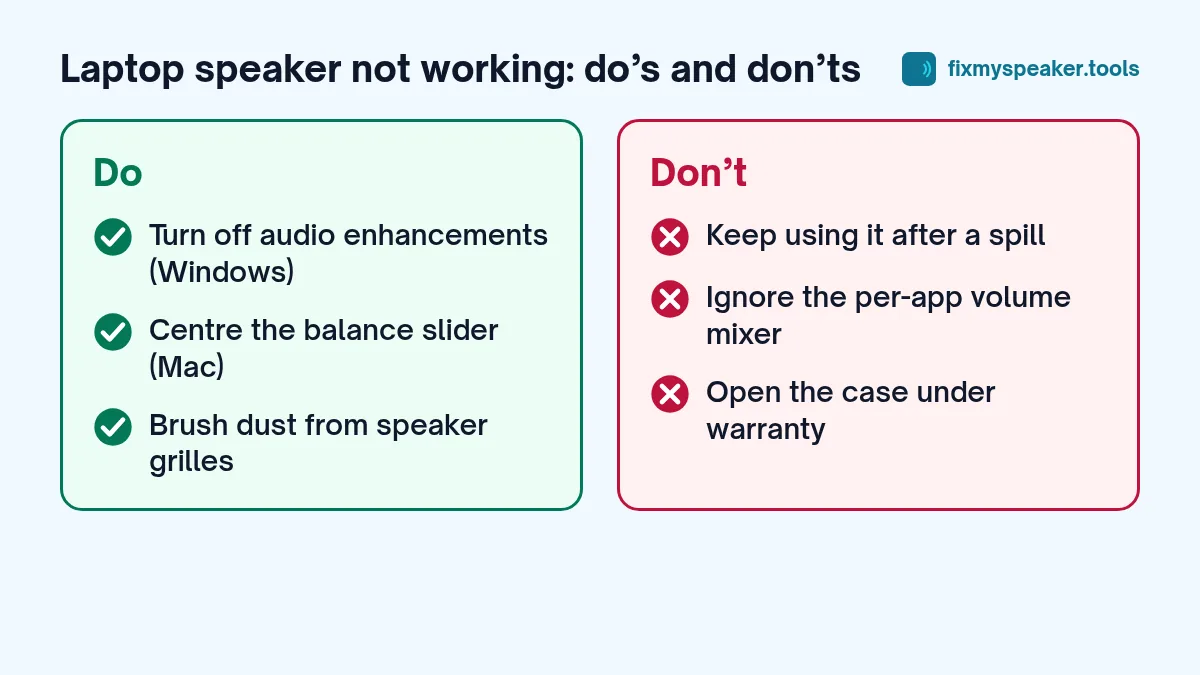
Enhancements sometimes cause crackling, distortion or no sound. In Settings, System, Sound, select your speakers, and look for Audio enhancements; set it to off. In older versions, open the Sound control panel, double-click your speakers and look for the Enhancements tab.
While you’re there, check the format or sample rate in the advanced properties. Switching to a different value, such as 24-bit 48000 Hz, can fix crackling.
Update or reinstall the audio driver
- Right-click the Start button and choose Device Manager.
- Expand Sound, video and game controllers.
- Right-click your audio device and choose Update driver.
- If that doesn’t help, choose Uninstall device, then restart. Windows reinstalls the driver automatically.
Your laptop maker’s support site often has a better audio driver than the generic one, especially for Dell, HP, Lenovo, Asus and Acer laptops with special audio software.
Check the manufacturer’s audio app
Many laptops come with apps like Dolby Access, Realtek Audio Console, MaxxAudio or similar. These can mute speakers or switch them into a headphone mode. Open the app and reset it to default.
macOS
Check the output device
Open System Settings, then Sound, and under Output select MacBook Speakers (or your Mac’s built-in speakers). You can also click the Control Center icon in the menu bar and choose the output device from the Sound section.
Check balance
In the same Sound settings, make sure the balance slider is centred. A balance pushed to one side makes one speaker silent.
Restart the audio system
If sound has stopped working mid-session, restarting the Mac is the simplest fix. Advanced users can also restart the core audio process from Terminal by running sudo killall coreaudiod, which restarts it automatically.
Safe mode and updates
Starting your Mac in safe mode loads only essential software, which helps rule out third-party audio apps or plug-ins. Also check for macOS updates under System Settings, General, Software Update.
Intel Macs: reset NVRAM
On Intel-based Macs, resetting NVRAM can fix volume and output issues. Shut down, then turn on while holding Option, Command, P and R for about 20 seconds. Apple silicon Macs don’t need this step.
Muffled or crackling laptop speakers
If the speakers work but sound bad:
- Dust: Laptop speakers often sit under grilles near the keyboard or on the bottom of the case. Dust builds up there. Brush the grilles gently with a soft dry brush, then play the Dust Removal mode in the speaker cleaner at high volume.
- Blocked grilles: Speakers on the bottom of the laptop sound muffled when the laptop sits on a bed or your lap. Try a hard, flat surface.
- Spills: If something was spilled on the keyboard, switch the laptop off, unplug it, turn it upside down in a tent shape to drain and get it checked. Don’t use a laptop that’s had a liquid spill until it has been inspected; liquid can reach the motherboard.
- Crackling: See speaker crackling causes and fixes.
Testing left and right speakers
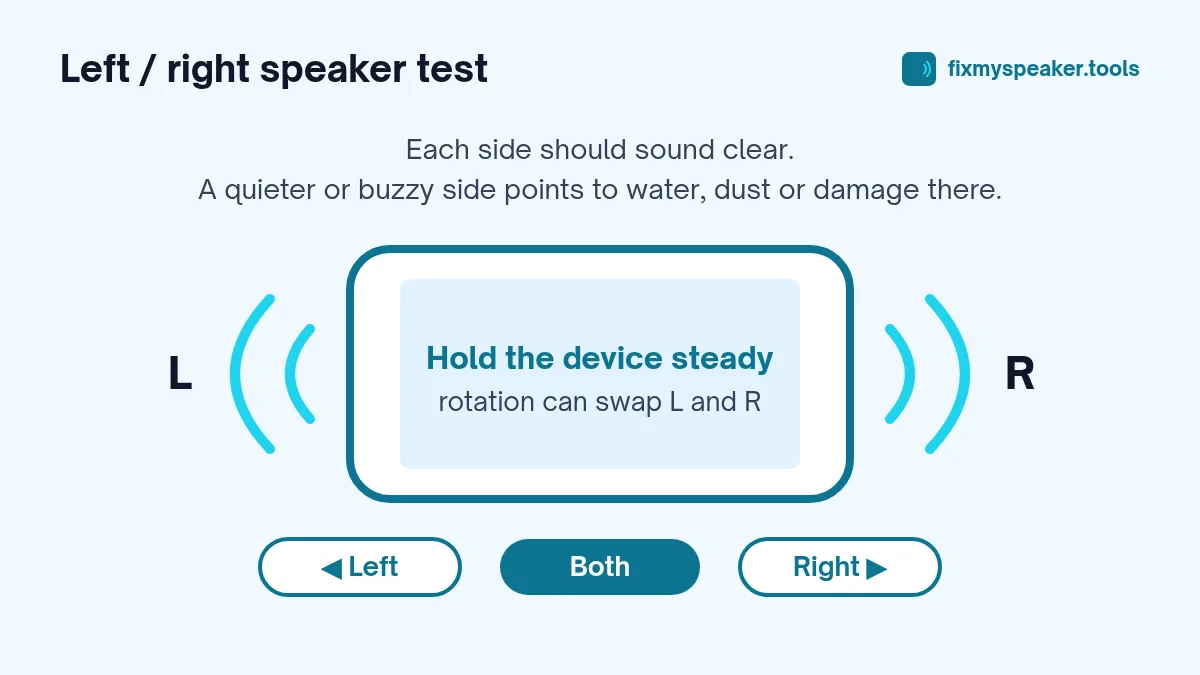
Open the Fix My Speaker tool, choose Stereo Test and play left, right and both. If one side is silent or distorted and the balance is centred, that speaker or its cable may be faulty. Our guide on how to test stereo speakers explains what to listen for.
Common mistakes
- Reinstalling Windows to fix sound. It’s rarely needed. Driver and output fixes solve most problems.
- Ignoring the manufacturer’s audio app. It can override Windows settings.
- Testing only with one app. A muted browser tab or game can make it seem like sound is broken everywhere.
- Overlooking a headphone jack fault. If the laptop always shows headphones as connected, the jack sensor may be stuck.
Frequently asked questions
Sound works through headphones but not the speakers. Is it hardware?
Not necessarily. Make sure the built-in speakers are selected as the output and that the manufacturer’s audio app isn’t set to headphone mode. If all settings are correct, the speakers or their cable may be faulty.
Why do my laptop speakers crackle when the CPU is busy?
This is often a driver or power management issue. Update the audio driver from the laptop maker’s site and check that power-saving options aren’t limiting the audio device.
Can a BIOS update fix sound problems?
Occasionally, yes, especially on new laptops. Check the laptop maker’s support page for your model to see if a BIOS or firmware update mentions audio fixes.
When it’s probably hardware
- Headphones work but the speakers don’t, and the output device is correct.
- One speaker is silent in the stereo test.
- The speakers crackle even at low volume.
- The laptop recently had a drop or a liquid spill.
A repair shop or the manufacturer’s service centre can test the speakers and their cable. On many laptops the speakers are an inexpensive part. See when to go to a repair shop.